Showing posts with label Tecnology. Show all posts

Wednesday, 6 January 2016

Volkswagen Gave An Apology Sandwich With The Reveal Of Its Budd-e Concept Car In-Between


Volkswagen’s head brand ambassador Herbert Diess quickly got the emissions fiasco apologies out of the way on stage at CES on Tuesday and then unveiled two connected and all-electric concept cars of the future, the e-Golf Touch and the much-anticipated Budd-e microbus.
Diess was in the running for VW CEO shortly after Martin Winterkorn resigned in fall 2015, amidst a revelation the German car manufacturer had deliberately placed emissions-cheating software in more than 500,000 vehicles sold in the United States. Matthias Muller is now the company’s CEO.
The U.S. government filed a lawsuit against Volkswagen on Monday in Detroit, Michigan. Diess took to the stage at the Cosmopolitan’s Chelsea Theater in Las Vegas this evening to address the situation.
“The current issue for diesel engines is certainly nothing to be proud of. We disappointed our customers and the American people. We are truly sorry and I apologize. We are disappointed that this could happen within the company we love. I assure you, we are doing everything we can to make things right. And we are working night and day to find effective technical remedies for our customers and the authorities worldwide. In total, up to 11 million VW group cars are affected by this issue. For the large majority of these cars, we have already worked out approved solutions. In Europe, this holds true for about 8.5 million affected cars. Resolutions have been ratified by the European authorities and we will start to repair these cars this month. Most of them will be fixed within 2016. Here in the US, the set of regulations is different compared to Europe. It’s more demanding due to nitrogen oxide and less demanding due to CO2. We’re working hard to create an effective package for the US authorities.”

Diess then proceeded to wow the crowd with the concept cars – both of which focus heavily on some digital touches Volkswagen hopes will give the company a good foothold in the connected car race.
The Budd-e, a pint-sized version of the company’s legendary hippie van looked almost Tron-like as it glowed in the dark onstage – as if to let us know we’re now in the future. It also stayed true to what seems to be the automotive theme of CES this year – connection to everything on command. The Budd-e will let you know if a visitor is at the front of your house, what’s in your fridge and “make sure your robot cleaner is ready” before you get home, according to one LG exec who came onstage during the presentation.
IMG_3475
The car is also equipped to handle package pickup and delivery with a built-in drop box in the back where a delivery person can drop off and pick up packages wherever your car is parked. 
Budd-e also seems to be adherent to “the force.” The handleless car doors will automatically open at the command of your voice. Diess demonstrated this onstage as the driver inside said politely, “Hello Budd-e, please open the passenger door.” 
The e-Golf Touch is an updated version of the Golf R Touch concept car Volkswagen showcased last year. But this one is electric, comes with a 9.2-inch touchable dashboard resembling an iPad, and is compatible with Apple CarPlay, Android Auto, and MirrorLink.
One of the cool things about the e-Golf is the personalization. Different drivers can set preferred driving features in the cloud and upload them onto the tablet dashboard.
Gestures like the waving of your hand can control things like volume and the e-Golf is WiFi enabled and equipped with phone charging outlets in the front and rear seats of the car. Should no Internet connection be available, the car is also equipped with a USB Type-C port.
The presentation also touched on a strong theme among many car manufacturers at CES this year – automated driving. “Volkswagen is rapidly entering the digital world, utilizing machine learning and mapping,” Diess told the crowd.
IMG_3470
Note VW bought HERE, one of the largest digital mapping companies, last summer.
The company also unveiled a partnership with Mobileye, a vision technology company with an advanced driver assistance system that helps boost cars to a near self-driving experience.
“The human eye is really complicated and it’s really hard to replicate,” Co-founder and CTO of Mobileye Ammon Shashua said onstage at the VW event. “In the future we’ll live in a digital world…the camera will continue to be a critical sensor.”
A big theme for both cars was clearly about connection, but the Budd-e was definitely about the design. The car and the home cross-pollinate well in VW’s vision for the future Internet of Things, be it on the road or in the cloud and Volkswagen’s CEO indicated that these futuristic rides “could be a reality by the end of the decade.”

“The car of the future will make a difference. It will make our world a better place and Volkswagen will make sure most people can afford it,” Diess said.
He ended his speech with a return to what his company plans to do to make things right with the U.S. market. “We’re doing everything we can to work on the current diesel issue in the U.S.,” he said. “We’re working very hard to do so and confident we will provide solutions very soon.”


Tuesday, 29 December 2015

Samsung Pay Will Launch Online Payments In the U.S.


Samsung Pay plans a major expansion in the United States next year. Users will be able to make purchases on websites with Samsung Pay, which puts it into more direct competition with services like Paypal, Reuters reports. The mobile wallet platform will be also available on lower-end Samsung smartphones, not just flagship models like the Galaxy S6 Edge.

In an interview with Reuters, Samsung global co-general manager Thomas Ko said Samsung Pay will roll out to more smartphone models next year. The payment platform launched in the U.S. in September and has an advantage over competitors because it can emulate magnetic stripe cards thanks to Samsung’s acquisition of LoopPay, in addition to using NFC technology like Apple Pay and Android Pay.
This means Samsung Pay works with a wider assortment of existing point-of-sale equipment than Apple Pay or Android Pay does.
Ko claims that Samsung Pay is already the most widely accepted mobile payments system in the U.S. because it is compatible with most credit card terminals. Mobile wallets haven’t quite taken off in the U.S. yet, but getting people accustomed to using their stored financial information in Samsung Pay for online purchases may convince them to pull out their smartphones at cashier stands, too.


Thursday, 24 December 2015

How BB-8 Works

By now, there’s a pretty good chance that you’ve seen the new Star Wars movie — and for those who haven’t, don’t worry: no spoilers here. At long last, we’ve got a much-needed dose of Starfighters, Rebel Alliances, Lasers, and droids. BB-8, the adorable successor to R2-D2, has captured hearts and minds. As lovable as it is, and even with as much life as its creators managed to instill into it, in the end… it’s a super sophisticated prop. And now you’re wondering: how the heck does this thing work?
While JJ and Co. have kept the specifics of BB-8’s innards mostly under wraps, we can suss out the basics. Behind that trilling orange and white sphere, BB-8 is likely a set of wheels (propelling the sphere by spinning against its inner-wall) and a magnetic mast (to hold on to and control BB-8’s head). The sort of “wobbly” way BB-8 moves? It’s all inherent to the design — what might be considered a flaw if used anywhere else, here it helps to give BB-8 much of its character.
That explanation will leave a lot of you wanting for more. Want a more detailed breakdown than that? Read on, folks.
A lot of the analysis you see on the internet today has people treating BB-8 as two discrete operations, one each for the head and ball. However, one of the many patents filed by Disney and partner Sphero paints a different picture. This patent, for a “Magnetically coupled accessory for a self-propelled device,” explains how to get BB-8 to work without a separately controlled head. Combine this with Sphero’s Chief Scientist Adam Wilson telling Polygon.com that the head isn’t articulated independently, and you can start to paint a picture of what the internals look like.

The strongest justification for this kind of system is in watching BB-8 try to lean over. It doesn’t seem to be able to maintain a constant head angle while static. This strongly implies that the head isn’t articulated independently, and is consistent with the patent.
Let’s get things rolling
The head complicates things, so let’s just think about the body for now. An image from one of the patents is an extremely helpful illustration. To make things simple, let’s think about this problem in two dimensions, looking only at forward and backward motion. The same principles apply to keep this stable; all that’s happening when BB-8 turns is the internal assembly yawing to point in a different direction.
In a nutshell, what we’ve got is a sphere with wheeled mechanism inside it. The wheels are forced down against the wall of BB-8 in some way (either spring or gravity, it doesn’t matter a huge deal). Rotating the wheels shifts the center of the system’s mass, the bulk of which is in the wheel assembly, off of the vertical line that includes the center of the ball and the contact point with the ground. Leaning generates a moment. Do this right, and the ball moves in the direction that the wheels were shifted to. If we were to picture a mast mounted perpendicularly on top of the wheel base, the ball would move in a direction opposite to the mast.
patentgrab_wheelIMAGE: UNITED STATES PATENT APPLICATION
In broad strokes, this is similar to what it’s like to get a Zorb ball moving. Being the heaviest thing in the Zorb, moving forward changes your position relative to the ball’s center of mass. This, in the end, leads to rotation and forward motion. (We’re not going to go over the dynamics of this problem, but reach out if you really want to know).
zorbIMAGE: FLICKR/DAMIAN CUGLEY UNDER A CC BY-SA 2.0 LICENSE
A head for math
That mast we talked about earlier? That’s where BB-8’s head goes. Since it’s attached to the mast through the sphere, it makes sense that it would be attached magnetically, as the patent dictates. There are lots of ways to do this, but one that lets BB-8 bounce and still function like it does in the movie involves a set of attractive and repelling magnets. Repulsion probably keeps the head from contacting the ball, and magnetic attraction around the edges of the head keeps it from rolling off.
bb-8-3IMAGE: BRYCE DURBIN
Earlier, we went over how to get BB-8 to move if you wanted the mast (and therefore the head) to point in the direction opposite to motion. Through most of the movie, though, you see that BB-8’s head is tilted in the direction of motion. We also know that the head can’t move separately. So, how does this work?
giphy (1)
Again, BB-8’s floppy motion tells a lot. Notice how before BB-8 starts moving forward full tilt, there’s a brief period when it’s moving with the head almost rolling backward? Applying some dynamics to the problem helps explain what’s going on.
To clear things up, I don’t think that this is an inverted pendulum problem, even though it’s easy to draw some comparisons. However, let’s pull one concept out from the typical inverted pendulum problem that you go over in school. To get the inverted pendulum’s shaft pointed in the direction of motion, you first have to move the system backwards a little bit, let the shaft fall into place, and then reverse the direction of motion.
IMAGE: BRYCE DURBIN
Similarly, I suspect that the brief period of minimal motion when the base is moving but BB-8 as a whole isn’t is doing something similar. It’s likely that BB-8 gets into motion slowly (without a noticeable backward head shift). Then, by slowing the motors down, the head is allowed to roll forward. Once the head is pointing forward, you can resume the motors and get that nice full-tilt roll that’s shown in the movies.  Alternately, it’s possible that the motors drive the mast forward, letting the ball move backwards, and then the motors maintain constant angle as BB-8 moves forward. If the mast and wheel assembly have enough inertia relative to the rest of the system, you wouldn’t need more than a tiny initial motion before getting started.
All this is easier said than done, though. The control law and sensor suite running all this has to be incredibly sophisticated – making running BB-8 as much of a software problem as it is a hardware problem.
Calibration is Key
Since your entire operation depends on knowing the angle of offset from vertical (θ), your control system needs to be able to measure this to extreme accuracy. This is perhaps why we saw BB-8 needing to be calibrated when TechCrunch’s Lucas Matneyplayed around with a scale model toy earlier in the year. All this feeds into what you call a closed-loop control system, which maintains the angle (θ) of offset from the center at whatever value you set it as. This value is set by the software depending on how fast you want BB-8 to go.


All this being said, this system does mean the BB-8 comes with some handling restrictions. Really, it would have been simpler to just use the two-system method that other analysts predicted. I can see why the designers wouldn’t have done that, though – it’s just less cool.  A lot of this is in broad strokes based on what we can get from video and patent filings. It’s possible that I’m entirely wrong and BB-8 does something else.


Monday, 21 December 2015

How to Make Your Own PC

We love computers, more than tablets, laptops, smartphones and any other type of computing device, and like us, there are thousands out there. We believe that the humble desktop PC has lots to offer and it will never be replaced by other devices. It offers both flexibility and power, it gives you the possibility to customize it and create a work of art.
That’s why, we decided to give all the desktop PC fans out there a tutorial on how to build their own computer, component by component. In this series of articles, we will take a look at how to build your own PC, what parts to choose and how important is each and every component. We will update this post as we go along and give you a complete tutorial so you will have all the information you need in making your own build.

Why make your own PC?

The answer is simple: for better performance. Off-the-shelf systems lack thehorsepower and customizability that self builds have, and also, when you know exactly what you have inside your computer, it’s much simpler to upgrade it when the time comes. Also, you will have knowledge of the different aspects of building a computer, different technologies, confusing terms being explained and how to compare different components to see which one is better.
Not to mention that it will be much cheaper. There are risks involved with making your own personal computer, so be sure you learn every step in detail, because you don’t want to break something. Making your own PC will also work as a confidence booster, and your friends will always ask you to help them. Who knows, you might even make a buck out of it.

What have we covered so far?

1. What type of computer to choose

As you may very well know, there more than one type of computers, so the first step is figuring out which one is the best suited for your needs. Are you a gamer, are you an amateur director who has to do a lot of video editing or you’re just using your PC to see movies and pictures and to play some not so demanding games? That’s the first step you need to do before starting to build your own PC.

2. How to choose a case

The case is the first thing anyone will see on your computer, but its functionality extends more than aesthetics. It plays a crucial role in cooling your system, so choose with care. So, after you have made a decision and you know what kind of computer it will be, now it is time to choose case where your system will “live”.

3. How to choose the motherboard

The motherboard is the body or mainframe of the computer. It is that one component that binds all others to create a fully working computer. You need to carefully choose this, because all your components will be mounted onto this. If the processor is the brain of your computer, then the motherboard is its “backbone”.

4. How to choose the processor


Because the CPU is the brain of the PC, you must take extra care in choosing it. Also, it’s one of the most expensive (specially if you buy an Intel), so you have to get it right! Processors are getting more powerful year after year, so you have to choose one that will last for at least an year. There’s a big debate between Intel or AMD, so read our article to find out more about it.

5. How to choose the cooling system

Cooling your system is very important. All computers need to run on low temperatures and depending on the type of computer you want, you need to figure out what cooling system to add. You need to keep your PC cooled down if you want to have a smooth experience while using your computer. Especially if you’re a gamer or a person who does heavy work (like Photoshop or After Effects), you know just how important this aspect is.

6. How to choose the RAM

RAM memory is often overlooked and thought of as a simple component. We will try to shatter that belief and give you some understanding of what the RAM is and how it works. The basic idea is that more RAM power means a more efficient computer, but there’s much more to it than this. Read our article to be informed.

7. How to choose the video card

If you are a gamer, than this will most probably be the most expensive component of your build and also one of the most important ones for you. Here we will show you how to choose the best one.

8. How to choose the hard drive

The place where you store all your information and where your OS boots. But what to choose? HDD or SSD? In this article we will try to shed some light on the subject.

9. How to choose accessories

Accessories come in all shapes and sizes, from performance, to aesthetics and to peripherals. Not only they add some “bling” to your computer, but also better performance and more functionality. They might not represent the most important parts of your computer but in order to give more personality to your PC, learn how to choose accessories for it.

10. How to choose the power supply

Powering your system is a top priority, so the power supply unit must be chosen with care. If you go wrong here, you might end up with a system that does not have the power to start. Without it, you simply can’t start your PC, but the power supply is also important to keep the energy flowing.

11. How to do proper wire management

Wire management is not only cosmetic, but it also helps the cooling of your system and helps your computer to remain clean for a longer period of time. I recommend spending some time here, to make it right. A computer system with lots of wires isn’t quite attractive, so learn how to make your PC look sexy.

12. Assembling the PC

After choosing all the parts for your build, it’s time to get to work: putting all those components together and watching a PC being born. Be careful and wear gloves just for extra protection. The feeling you get once you assemble your own PC is inexplicable!

If you think that you are not up to the task of making your own build, think again. The process is very simple and as we go along you will see that with the right information, anyone is capable of completing an awesome build. We have lots of experience in building computers, and we will take you step by step through the entire process. As you know, we already covered the different aspects of buying a desktop PC, but now we will show you how to build the custom PC so you can have the satisfaction of using a computer that you built from a pile of components. From our experience, we can tell you that there is nothing else that compares to the moment you fire up a computer you built, it’s like seeing your child born!


How to Speed up a Slow Laptop

If you are asking yourself how to make that old laptop run faster and give it a breath of life, then you found your solution. The process is almost the same as in computers, the same laws apply to laptops. If you use your laptop as a paper holder now, because it runs so slow, you cannot use it for anything anymore, then try these tips and they could prove useful and once again make your laptop usable.
Keep in mind, there are no miracles, so if you have a laptop that is older than you, chances are you should skip directly to the Laptop Buying Guide, but for laptops that can still handle a few upgrades, there is still a chance. I’ll start with a few, free solutions that can improve your laptop’s performance.

1. Keep it clean

clean-laptop
Dust and other particles make their way into your laptop, and because of this, it makes it overheat. This is a definite NO. Take it apart and clean all the components inside. This will help keeping overheating under control, which is the biggest problem laptops face. Also, when doing this, change the thermal compound from the CPU and the chipset. Maintaining it cooler helps your laptop from shutting down because of overheating and it helps the components have a longer life.

2. Keep it cool

laptop-cooling-pad
If you didn’t understand before, then I will say it again: all computers like cool air flowing through them. A clean computer works better then a hot one. Also, think of buying a cooling pad or just keep it on a hard surface, where it can intake air and push it over the heatsinks.

3. Install a new OS

windows
A fresh install of the OS (especially Windows) can have a huge improvement in how your laptop works. Viruses, malware and other harmful stuff gets in your computer and it causes it to work hard. Of course, a cure for this would be a good antivirus, but fi they get in, it’s really hard to get them out and even after that, your computer will not work as well as it did. Old files and registry entries also pile up and make it harder for your OS to work, so a fresh install can do miracles. Also, if you are running Windows Vista, upgrade to Windows 7 (or even Windows 8), it will give you better performance.

4. Defragment your HDD

defragmentation
Defragmentation keeps your HDD in good shape. The data has a habit of clustering together and it makes it harder for the HDD pin to find it and access it. So try defragmentation on a regular basis.

5. Use utilities for speed up

tune up laptop
There are tons of utilities out there that claim to make your computer run faster. I used some, and the majority are just reg cleaners and task managers. They do work in some capacity, but don’t let yourself fooled by what the developers say they do. Also, when searching for such programs, find one that lets you modify the startup programs. As you might know, lots of programs start automatically with Windows, making the boot time longer. The unnecessary ones can be removed, saving precious time when booting up (Note: you can also do this from the MSConfing in Windows. Start -> Run-> type “msconfig” -> startup).

6. Keep your HDD “clean

By this, I refer to the numbers of programs you have installed on your computer. Try to keep it to a minimum. Install only the programs you usually use, and not tons of other apps that you only use once. They make it easier for fragmentation to creep in and it also creates registry files that keep on piling up.

7. Do not use Animations

Animations make your desktop look nice, but they also slow up your computer. Windows Aero and other aftermarket themes are such an example. If you are using XP, then try using the old style theme and no background picture (solid color). Fewer desktop icons also help. By using these tips, you will see some improvement in the way your computer works.

8. Get more RAM

laptop ram
Now, moving out the “free” zone into the place where you have to invest some money for your laptop to work better. The first step it to upgrade the amount of RAM memory your laptop has. 1-2 gigs of RAM will be definitely make a difference and you will notice the change immediately.

9. Install a new CPU


laptop processor
If you have a suitable socket on your laptop, then a new CPU can make a great difference. Because of the heating problems, overclocking is not a very good solution for laptops. Because of this limitation, the way to go is a new processor, but keep an eye out for how much heat it dissipates, because it can overheat and it won’t run.

9. Install a SSD

ssd
Solid State Drives are by far the best idea if you want your laptop to work lightning fast. Although they are expensive, they work great and offer lots of speed. If your budget permits, then this is the way to go. Keep in mind that SSDs connect via SATA cables, so before you go and buy one, check to see if your laptop supports SATA drives.
Related ArticleSilicon Power SSD Velox V20 [Review]

By using these tips, you are sure to make your laptop run as the day it came out of the box. Keep in mind that by trying 1 of them might not give you the performance boost you are looking for, so try implementing more than one solution.


Friday, 18 December 2015

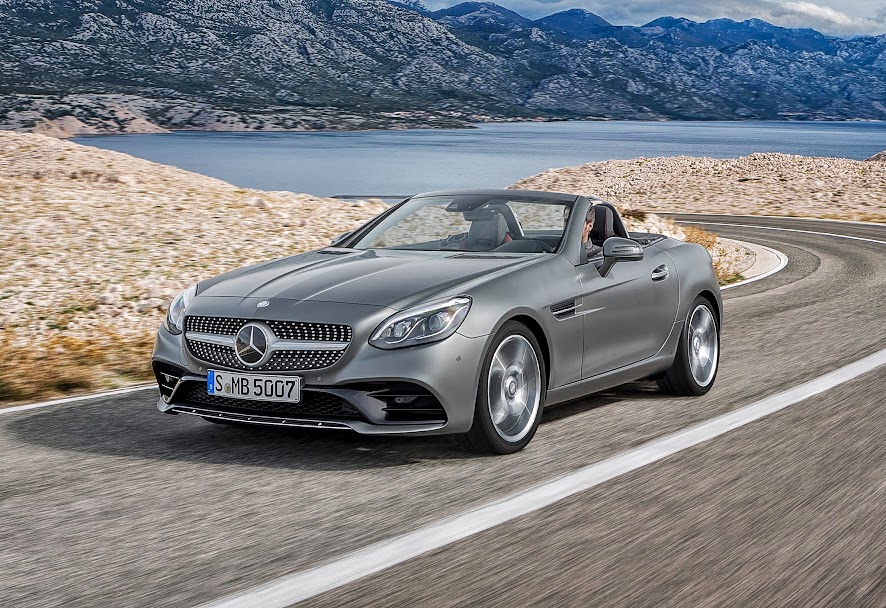
Twenty years after defining a new segment, the new SLC will launch in the Spring of 2016.


With significantly optimized technology and an enhanced look, the name change acknowledges the traditionally close relationship with the C-Class, from which much of the roadster’s technology is derived.


The new Mercedes-Benz SLC has an impressive heritage to live up to: its predecessor, the SLK, which was launched in 1996, achieved sales of around 670,000 units. Comprehensively refined and with a model line-up from the sporty SLC300 to the  high-performance Mercedes-AMG SLC43, the new model has what it takes to build on that success. Both the SLC300 and SLC43 feature the sporty, yet comfort-oriented 9G-TRONIC automatic transmission as standard equipment.


Ola Källenius, Member of the Board of Management of Daimler AG, Mercedes-Benz Cars Sales & Marketing: “In 1996 Mercedes-Benz redefined the roadster with its innovative vario-roof, and combined open-air driving pleasure with uncompromised comfort in poor weather. The renamed compact roadster remains an ideal combination of passion and common sense, appealing to both the heart and the mind.”

As part of the facelift, the Mercedes-Benz designers have further honed the roadster’s sporty look. The new front section, where the steeply raked radiator grille elongates the appearance of the arrow-shaped hood, is particularly striking. All SLC models feature a diamond radiator grille as standard.

With DYNAMIC SELECT, the vehicle characteristics can be adjusted instantly at the touch of a button, as the system modifies the engine, transmission, steering and suspension at the driver’s behest.


Monday, 14 December 2015

Ultimate Guide to Speed up Your Internet Connection

he 21st century is the age of speed: fast travel, fast communication, technology getting more and more mobile and of-course, faster. But even now, in the age ofspeed, some people still suffer from lack of a decent Internet connection. AlthoughInternet speed has significantly improved over the last few years, some of us still suffer with slow connections and browsing the web can prove to be a daunting task.Although one cannot force the ISP to provide faster internet, there are some solutions to making the most of your existing Internet connection.
Speed up Internet connection

Tips & Tricks to speed up your Internet

1. Keep a clean and secured computer


Clean your hard drive as often as you can. Try using an anti-virus software, but a very resource demanding one (check our list of the best free antivirus programs and paid anti-virus programs), look for a anti adware/spyware program. These bugs can drastically lower your Internet speed, so scan your computer regularly, also, try using a simple firewall, but keep in mind, heavy firewalls (such as Zone Alarm) require a heavy duty Internet connection, so if you don’t want to make it worse, look towards a firewall that is not resource hungry.
Also,another important thing you can do to make your browser faster, is to clear your history and other useless data your browser stores on your computer (except temporary internet files for sites you usually access), clear your cache and also make it bigger. A bigger cache for your browser means more information stored on your computer and faster load time for your regularly accessed web sites. This is a great way to speed up your Internet connection.

2. Upgrade your computer

If you have an old computer, with a low-end processor and little memory, then your computer might be the problem, not your internet connection. Try adding some more RAM and/or a more powerful CPU. If these are old and slow, they load web-pages slowly and even more slowly if they have complex graphics.
Another upgrade to keep your mind on is your notwork card (LAN card) or Modem Card. These are also physical components, in which you plug in your Internet cables (standard telephone cable or RJ45 connectors). These cars have a maximum connection speed (check the model or the manual to find out how much). Some older models are 10/100 Mbps, and these models are slow, and if you have a faster connection, they will limit the speed to their maximum (it’s funny, just today I had a course at school about this). You should try to get a 10/100/1000 Gigabit LAN card for better connections.

3. Update your softwareIt’s important to keep your computer up to date and install the latest updates for all your software (including the OS). Updates normally include bug fixes and your programs should load and run faster, so keep an eye out for updates. But remember, never keep open programs you do not necessary need. Always have installed the latest version of your browser and OS, but also for flash player, shockwave and java.

4. Do not use slow programs

Try to get a fast web browser, this is the key for web surfing. Traditionally, Internet Explorer is considered to be very slow, specially the older versions. It also consumes more resources. Try using something like Opera, Firefox or Chrome (the fastest in my opinion). And another thing, do not get too many extensions, this advice is for any browser. Try to use only the necessary add-ons or extensions, because, if you pack your browser with them they will reduce your internet speed and your browser’s overall performance.
Resource hungry anti-virus and firewalls also have an impact on your computer and browser performance, so do not aim for something your computer can’t handle. Try to get some easy to use and resource friendly programs.

5. Keep an eye out for bandwidth consumption

Firewalls, anti-viruses, OS’s and other programs that use an internet connection eat up bandwidth, so try to set them to do only manual updates and close all unnecessary ones, this will free your bandwidth a great deal and you will see the difference. But remember to update them often, if they are out of date, than your performance will drop.
On the other hand, if you have a wireless network, protect it with a strong password. If other people connect to your wireless network, then your speed will definitely drop.

6. Try changing your DNS servers

It is wise to try changing the DNS configuration of your internet connection whenever you see a sudden drop in the internet speed. Here is a list of free and fast DNS serverswhich should be handy. Well worth giving this a try. Alternatively, try flushing DNS cache which can resolve the slow internet speed issues.

Extensions & Boosters


Extensions and programs that claim to offer you faster browsing are all over the Internet. The vast majority of them do not work, they don’t do anything to speed up your internet connection. But there are a few extensions and boosters that offer some boost in your browsing speed, although not quite noticeable.
However, here are the ones who have some impact on your Internet speed:

1. Webroot

Webroot
Webroot is a great tool for getting rid of adware and spyware from your computer. It scans your computer with great precision and it consumes next to no resources. I recommend this tool in parallel with NOD 32. Both of these are really resource light and and do an excellent job keeping your computer clean and fast.

2. Opera Turbo

Opera Turbo
One of the best internet boosters I have ever seen, and the best part about it is that Opera has this tool integrated in their browser. This tool speeds up your internet browser’s loading time for websites quite a lot. If there was ever a real tool for internet speed-up, Opera Turbo is that.

3. FastestWeb

An extension developed for speed. FastestWeb is exactly that. It makes life easier for you by working in the background of your browser and making it surf the internet faster. Although this is not magic potion making your browser lightning fast, it does make it a little more faster and you should notice the difference. This extension is available for both Chrome (download link) of on Firefox (download link).

Common Sense

  • Do not open new windows when clicking on a link, just open them in new tabs in the same window. This will conserve resources and make your overall browsing faster.
  • Do not overcrowd your browser, try to keep enabled only the extensions you need and do not open lots of tabs either. They consume memory and therefore, your browser will work harder.
  • Disable flash, there are lots of flash blockers available on the web store, and they do a really good job. Flash files are usually very big, so the use of one of these tools will definitely change your browsing speed.
  • Learn keyboard shortcuts for your browser, each of them have their own shortcuts, but it saves you lots of time when browsing.

If you have a slow connection or a dial-up connection, contact your ISP (Internet Service Provider) and think of upgrading your connection to a better one. If there is no juice left in bandwidth, then you cannot squeeze more out of it.